
Seller Guide: How to Sell on ShopC
Everything a vendor needs – from registration to adding products, shipping orders and getting paid – in simple steps.
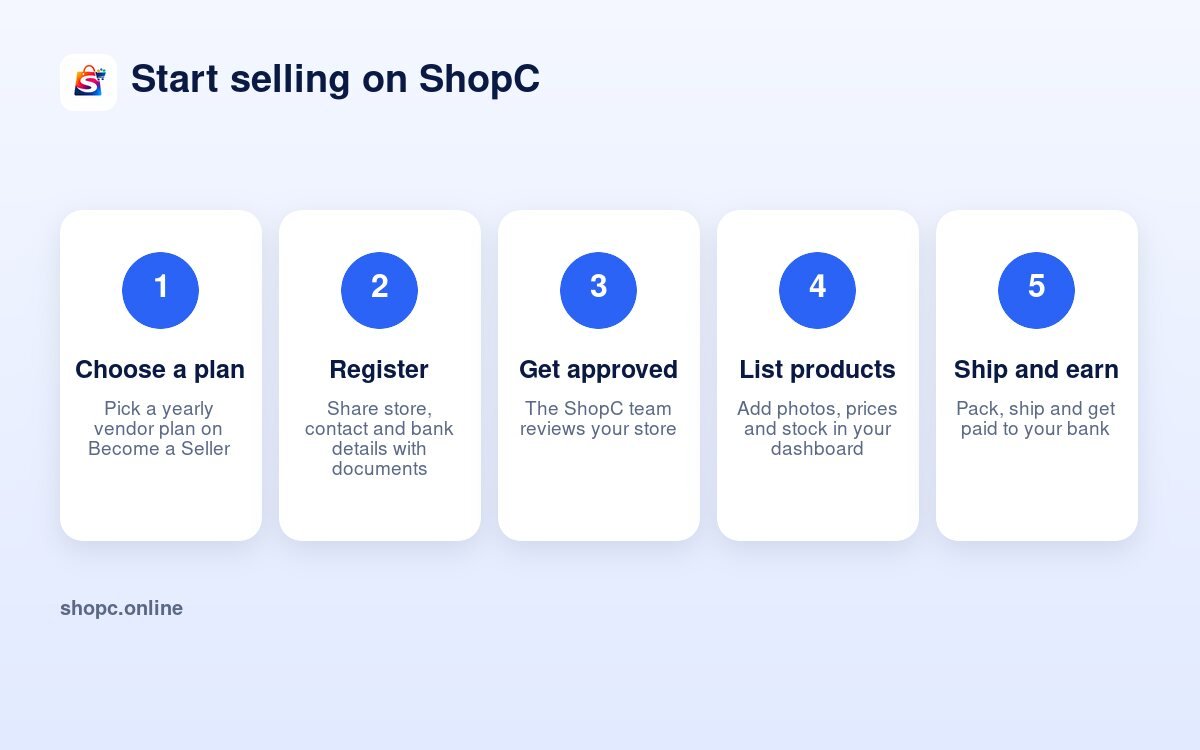
1Register your store
Fill in one simple form. It takes about 10 minutes. Keep your ID proof, address proof and bank details ready.
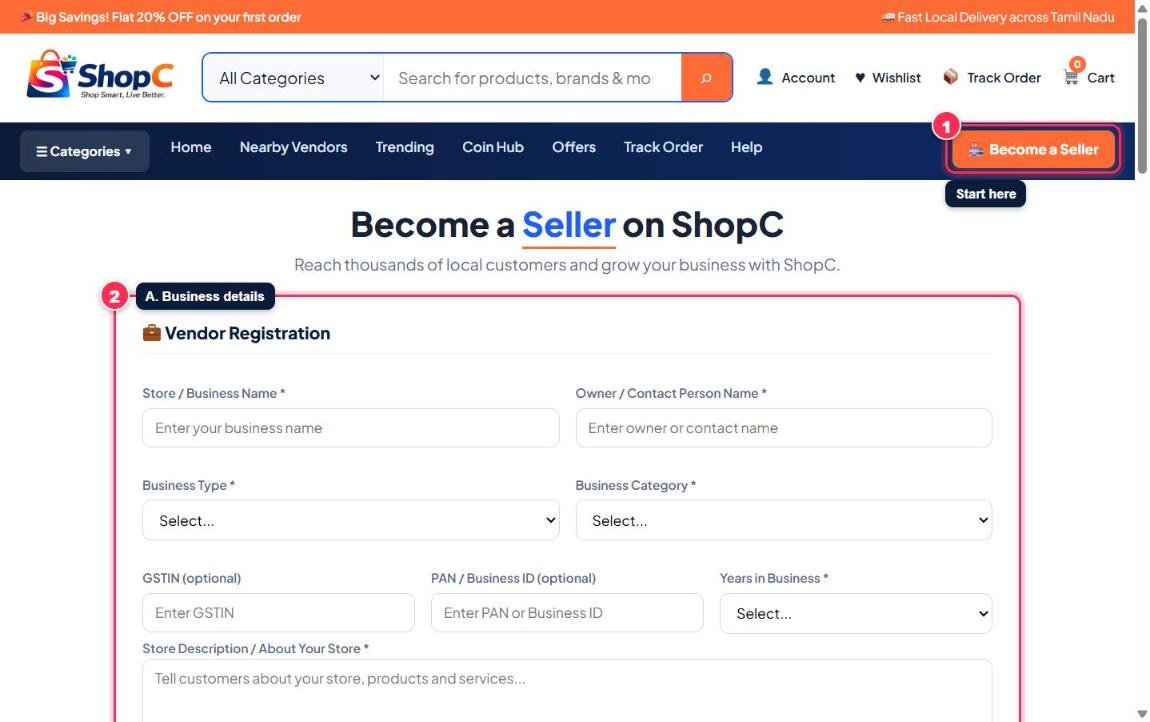
- 1Click Become a Seller at the top right of any ShopC page.
- 2Business details: store name, owner name, business type, category, years in business and a short description. GSTIN and PAN are optional.
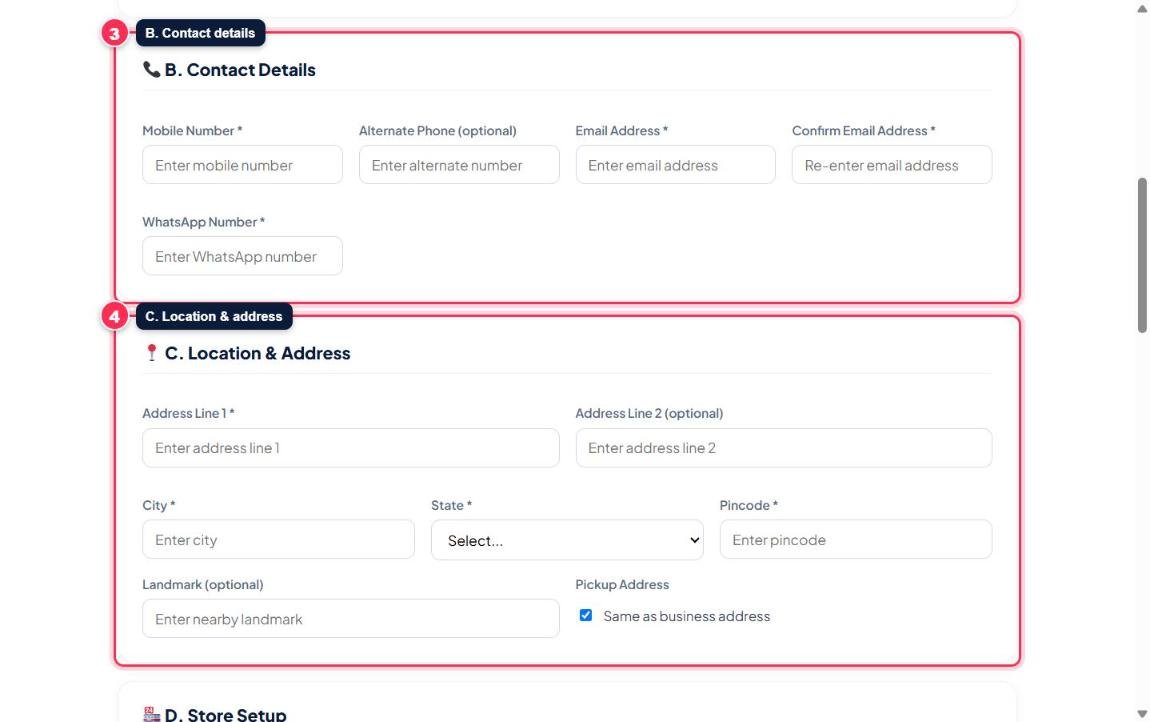
- 3Contact details: mobile number, email and WhatsApp number. Your email becomes your login ID.
- 4Location: shop address, city, state and pincode. Tick “Same as business address” if parcels are picked up from the shop.
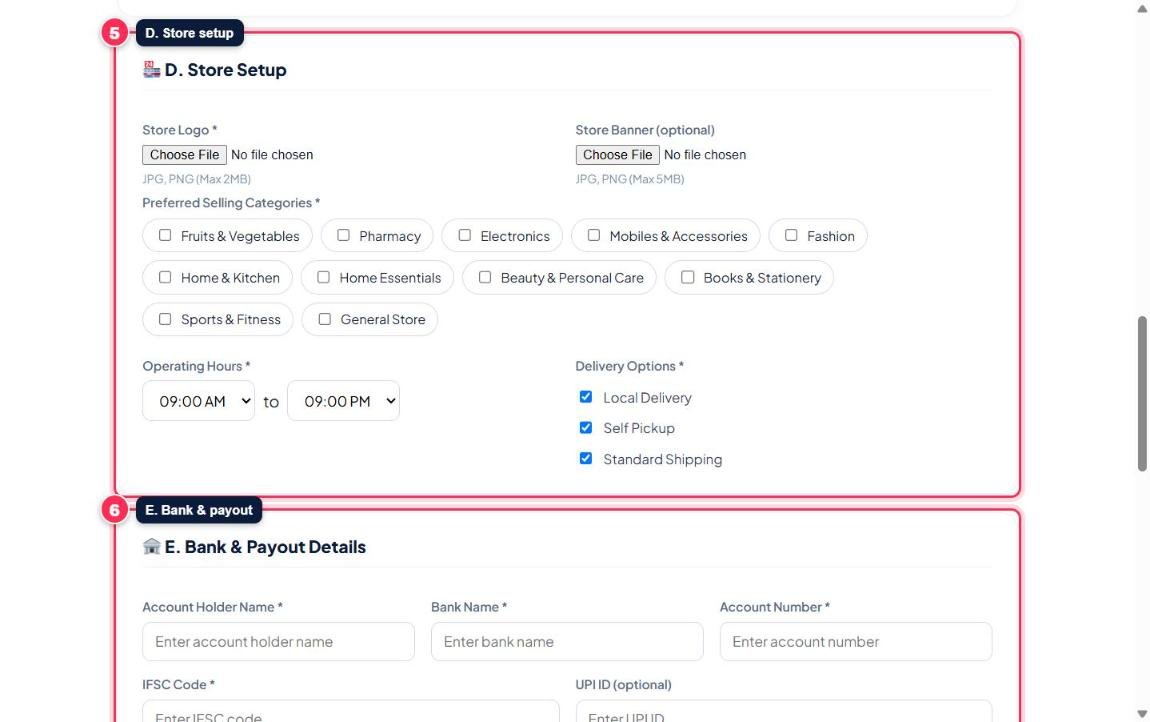
- 5Store setup: upload your logo (JPG or PNG, up to 2 MB), an optional banner, pick your selling categories, opening hours and delivery options.
- 6Bank & payout: account holder name, bank name, account number and IFSC. Your earnings are paid to this account.
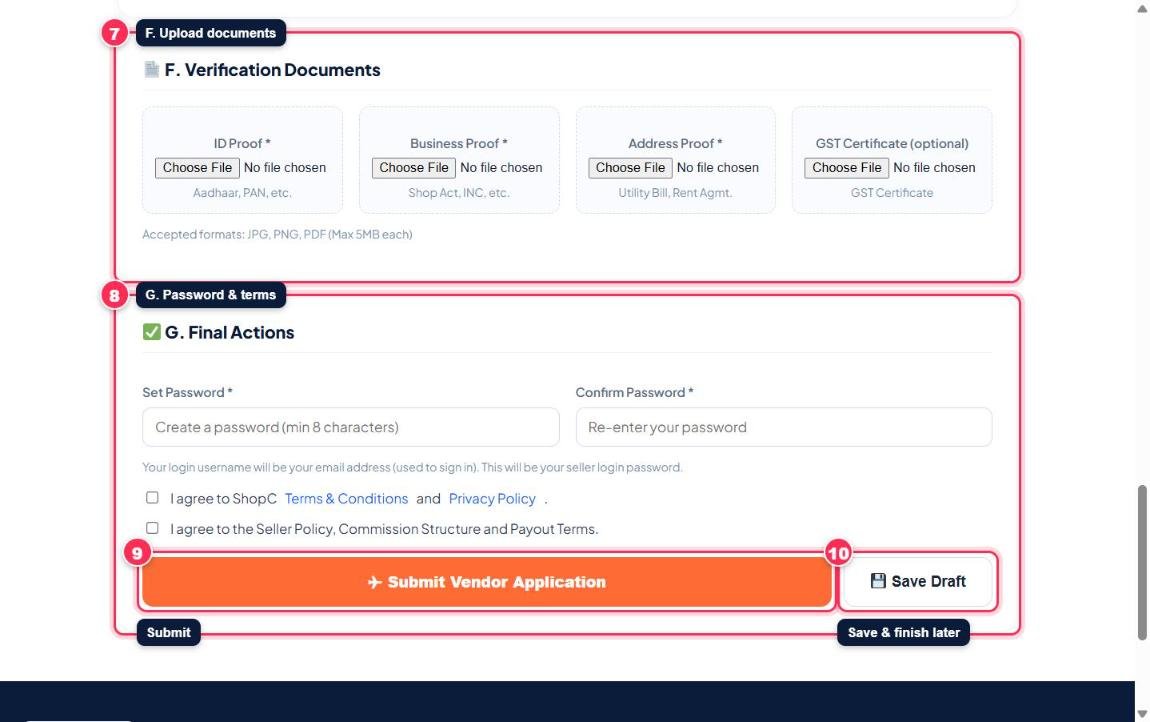
- 7Documents: ID proof, business proof and address proof (JPG, PNG or PDF, up to 5 MB each). GST certificate is optional.
- 8Password & terms: create a password (minimum 8 characters) and tick both agreement boxes.
- 9Click Submit Vendor Application.
- 10Not ready yet? Click Save Draft and finish later.
2Choose your yearly plan
After you submit the form, the plans page opens. Pick the plan that suits your shop and pay online.
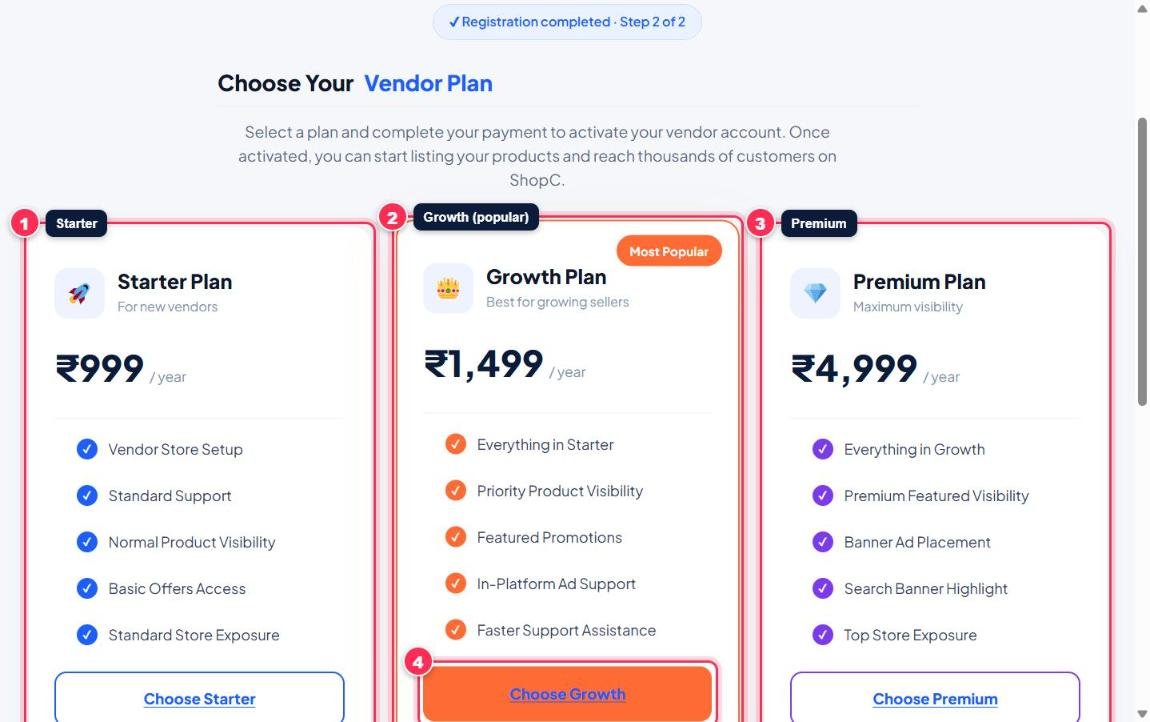
- 1Starter – store setup with standard support and visibility.
- 2Growth – everything in Starter plus priority visibility and featured promotions (most popular).
- 3Premium – everything in Growth plus premium visibility and banner placements.
- 4Click Choose … on your plan and complete the payment.
3Get approved and log in
The ShopC team reviews your details and documents.
- You receive an email when your store is approved.
- Go to shopc.online/login.
- Enter your email and the password you created.
- Your Vendor Dashboard opens automatically.
4Know your Vendor Dashboard
This is your control room. Everything about your store is here.
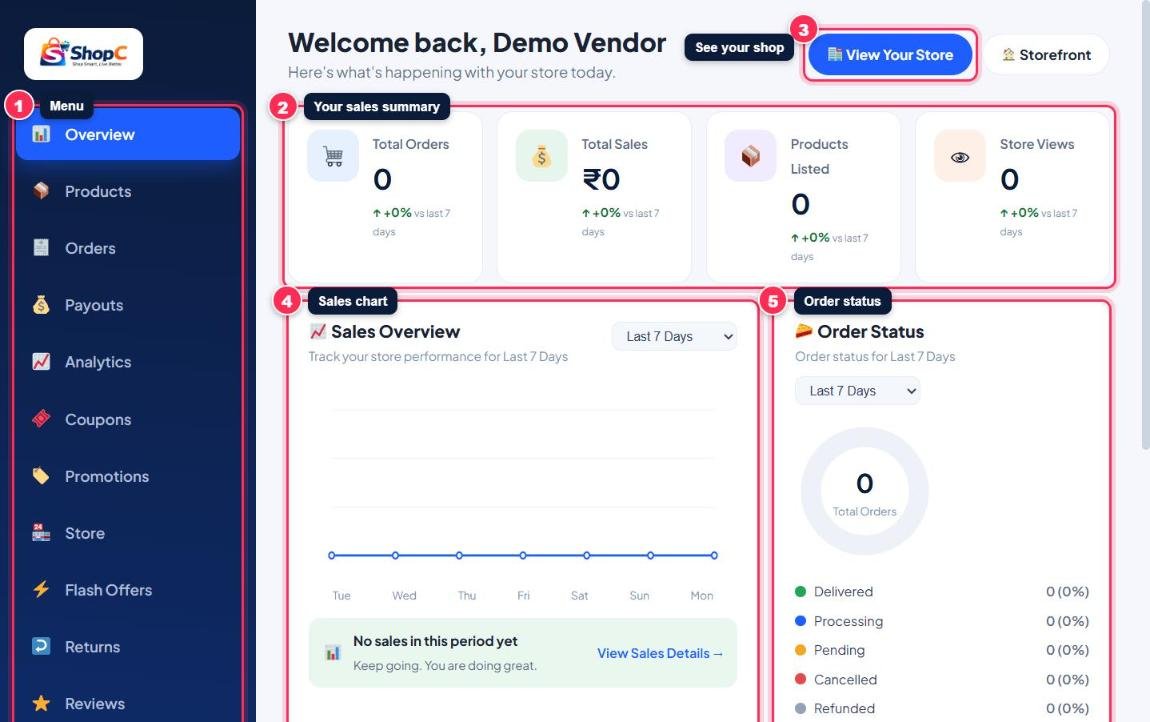
- 1Menu: Overview, Products, Orders, Payouts, Analytics, Coupons, Promotions, Store, Flash Offers, Returns and Reviews.
- 2Summary: total orders, total sales, products listed and store views.
- 3View Your Store: see your shop page the way customers see it.
- 4Sales chart: your sales for the period you choose.
- 5Order status: how many orders are delivered, processing, pending, cancelled or refunded.
5Add a product
Add each product with clear photos and an honest description.
- Open Products in the menu and click + Add Product.
- Enter the product name and choose a category (type to search).
- Enter the regular price. Add a sale price only if it is lower.
- Enter the stock quantity.
- Upload a main photo and up to 5 more photos (up to 5 MB each).
- Write the description: size, material, weight, quantity and care details.
- Click Save.
6Sizes, colours and combo packs
Sell one product in many options with their own price, stock and photo.
- In the product form, tick This product has variations.
- Choose Size, Weight, Color or Custom.
- Tap the ready options (S, M, L, 250g, Red…) or type your own and click Add.
- For each option enter the price, sale price and stock.
- Tap the 📷 Image box on each row to add a photo for that option.
Customers see each option as a button. When they tap one, the photo and price change.
- Combo Pack: tick Combo Pack / Multi-pack pricing, add Pack of 2, 3, 5 or 10 with a lower total price. The saving is shown to customers automatically.
- Advanced (optional): brand, tags, HSN code, shipping weight in grams, video link and return window in days.
7Pack and ship orders
New orders appear in Orders right away. Ship them quickly to get good reviews.
- Open Orders. Use the date filter to find orders.
- Check the items, quantity and delivery address.
- Pack the items safely.
- Open the order menu (…) and click Ship via Shiprocket to book the courier.
- Download the Ship Pack PDF from the same menu. The top half is the shipping label (stick it on the parcel). The bottom half is the packing slip (keep it inside the box).
- Hand the parcel to the courier at pickup. The customer can track it until delivery.
8Get paid
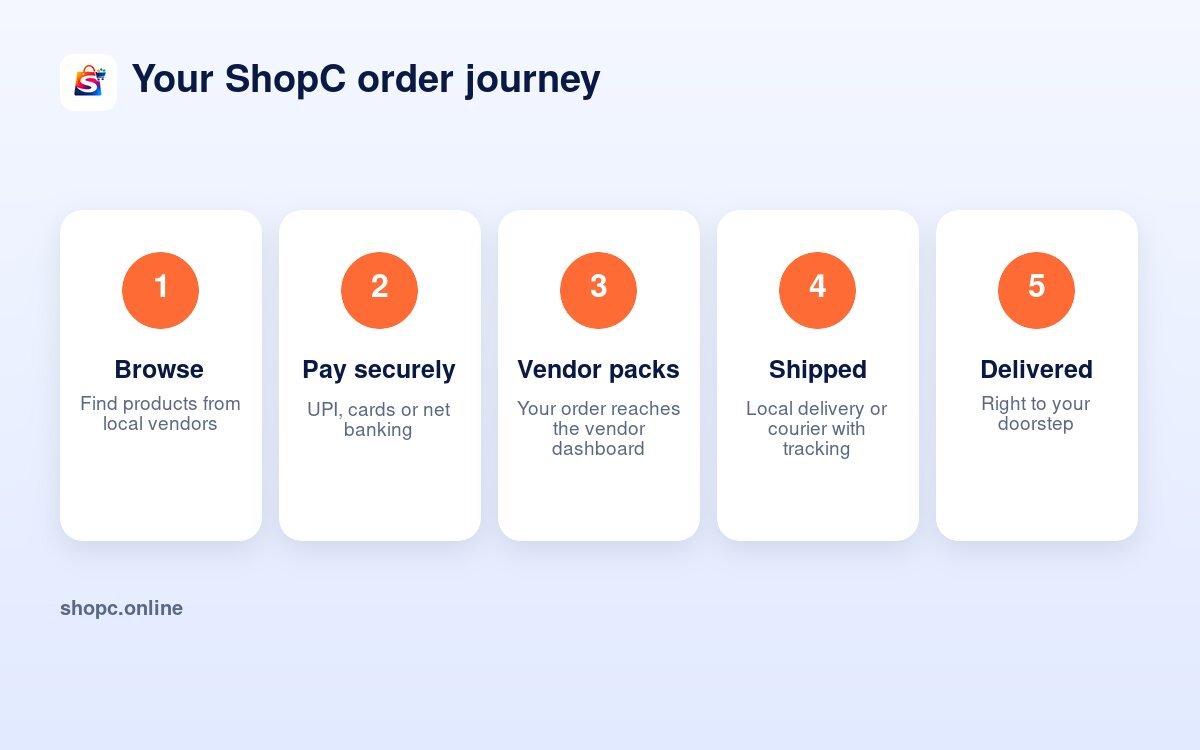
Customers pay online. Your earnings for fulfilled orders, after the ShopC commission, move to your bank account.
- Open Payouts.
- Check your bank details and click Save Payout Details.
- Click Request Withdrawal to withdraw your available balance.
- Follow the status in Withdrawal History. The ShopC team marks it Paid after the transfer.
9Store page, coupons and offers
Make your shop look good and bring more buyers.
- Store: update your logo, banner, description, address and business hours.
- Coupons: click Create Coupon – percentage or fixed discount, minimum order, expiry date and usage limit. Coupons work only on your products.
- Flash Offers: schedule a festival or flash sale price with a start and end time. It starts and stops automatically.
- Promotions: request featured placements for your products.
- Analytics: see which products sell and how your store is doing.
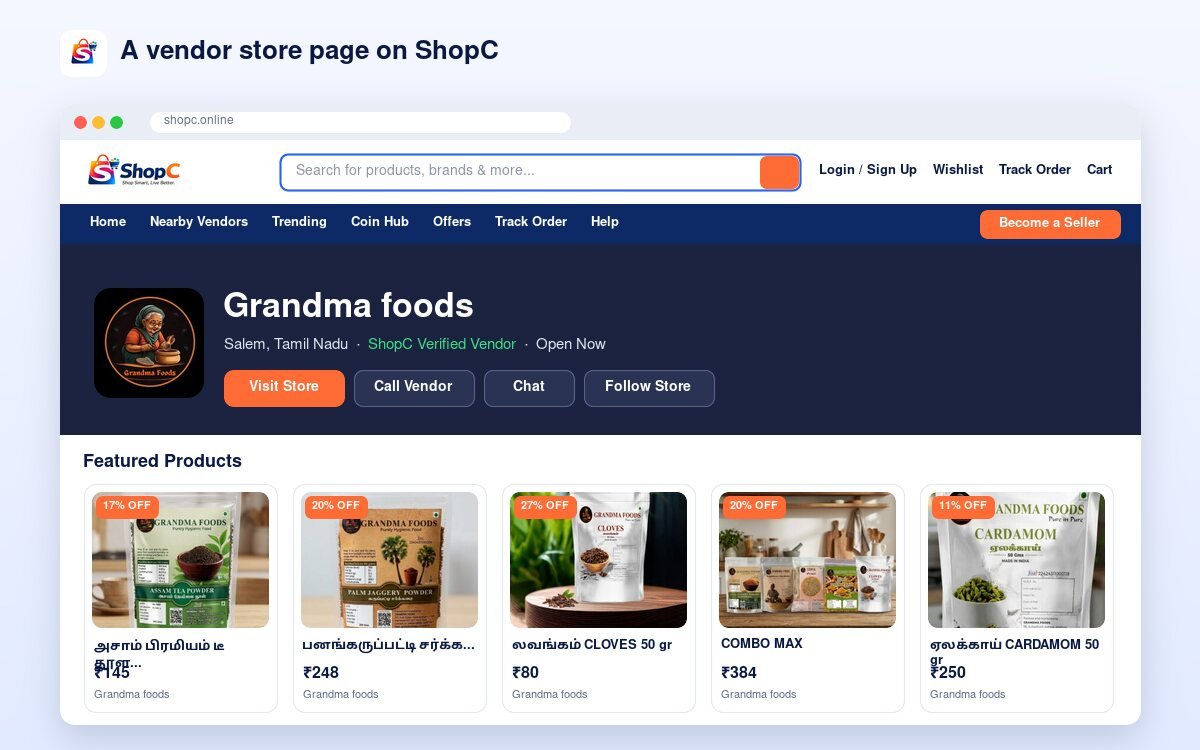
What customers see on your store page.
10Returns, reviews and help
Good service brings repeat customers.
- Returns: when a customer asks for a return or refund, it appears here. Click Approve or Reject with a reason. The ShopC team handles the refund.
- Reviews: read what customers say about your products.
- Need help? Email support@shopc.online (9 AM – 9 PM IST) or visit the Help Center.
Ready to sell on ShopC?
Register your store today and reach customers across Tamil Nadu.
Become a SellerSeller Login